
Notebook
A digital exercise book for writing, drawing and constructing.
Sheets and topics
- A notebook holds up to 100 sheets. Tapping the sheet's name at the top opens the overview of all sheets. There, New sheet creates a sheet, and tapping a sheet's picture opens it.
- Topics sort the sheets like dividers in a ring binder. New topic creates one; each has a name and a colour. Drag sheets into another topic by the grip ⠿. Deleting a topic keeps its sheets; they move to “No topic”.
- The … on a sheet renames, moves, duplicates or deletes it. Deleted sheets can be restored under Deleted.
- The Scribble page is always there and does not count, for trying things out. Keep… turns it into a proper sheet.
- At the top you choose the format (A4 or A5, portrait or landscape, or endless) and the paper (squares, dotted, millimetre, plain). + Page adds a page at the bottom.
Writing with the pen
With the Pen tool, the nibs appear at the top: pencil, fountain pen, ballpoint, felt tip and a marker for highlighting. Next to them are the colours; + adds your own.
- Erase rubs out whole strokes. A stylus's eraser end always works.
- With Move things, tap something to select it, or draw a loop (lasso) around it, then drag it. Two fingers or the mouse wheel move the sheet.
Ruler, set square and compass
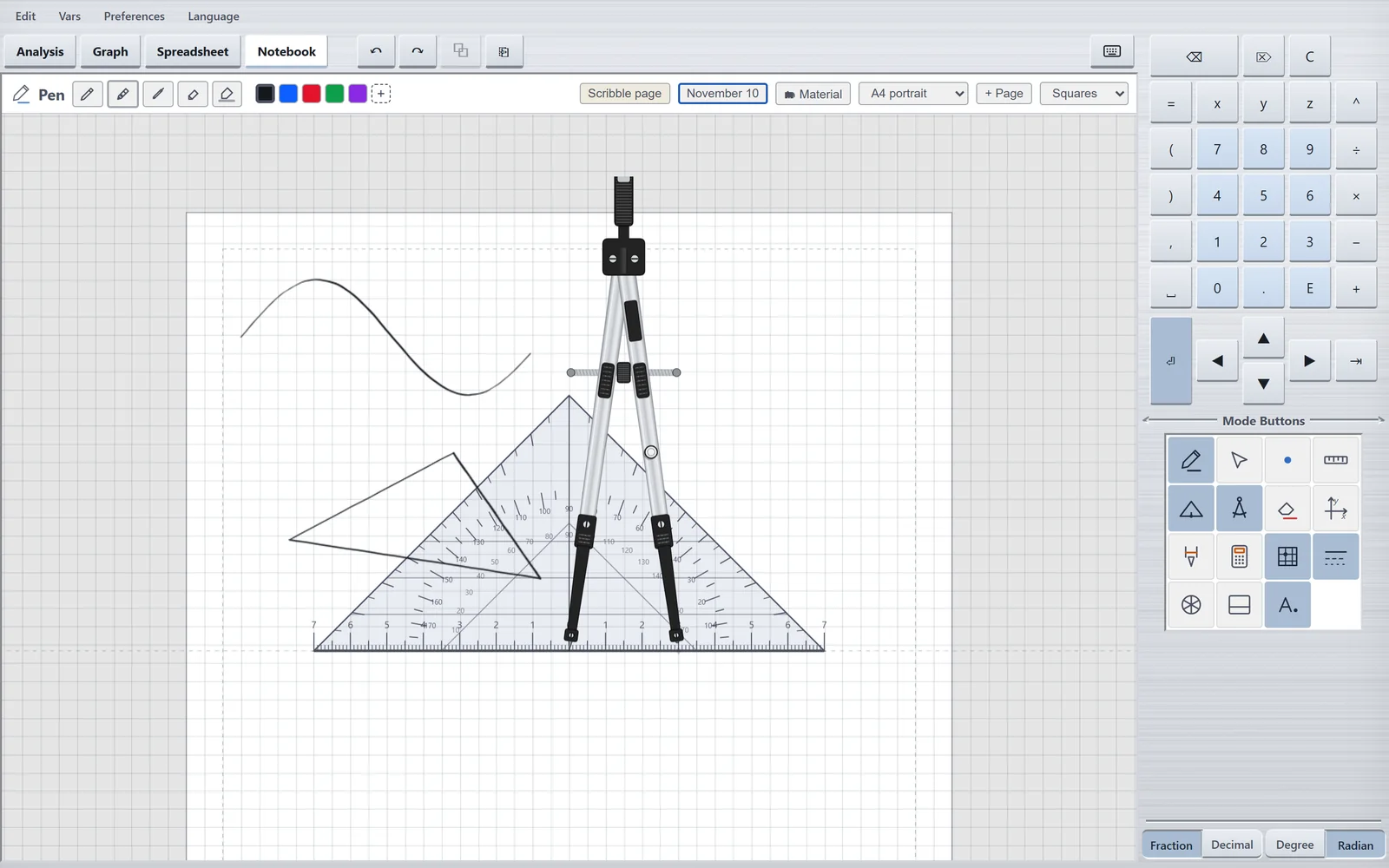
Tapping Ruler, Set square or Compass lays the instrument on the sheet; a second tap puts it away. You keep the pen in your hand and draw along the instrument. Instruments are never printed.
- Ruler: one handle moves it, the other turns it. Run the pen along the edge; the scale mark under the pen lights up. Near a line, the ruler snaps onto it.
- Set square: move it by the inner triangle, turn it about the zero point by the rest. It snaps onto lines, at right angles to them and parallel.
- Compass: the head turns, the wheel sets the radius in millimetres, the left joint moves it, the right joint places the lead. The button on the right leg puts the lead down or lifts it; with the lead down, turning the head draws the arc. The lead snaps to existing points, so a distance can be taken exactly.
Points, lines and axes
- Point places points; they snap to intersections, ends and lines. A single dot with the pen also becomes a point.
- Lines drawn along the ruler become a segment, ray or line, depending on whether points sit at their ends. The compass draws arcs. CASDesk remembers what depends on what: move a point and its lines follow.
- Double-click or long-press an object to open its properties: name (subscript with
_, such asA_1), mark, line style, colour, helper, locked, fill the area. - Axes places a coordinate system on the sheet; tap a number on the scale to change it.
- Measure: tapping an object measures it, such as the length of a segment. The result can be used in calculations.
Calculating in the notebook
- With Move things, tap an empty spot; a cursor appears there and you type a note with the keyboard. The f(x) button above the note starts a formula in it.
- Select a calculation in the note and tap ⏎. CASDesk asks where the answer should go: Replace, Append "= …" or On a new line.
- The = button lines up several lines on their equals signs.
- The Calculate tool opens the calculations from Analysis; Onto the sheet places one as a card in the notebook. Variables and functions are the same as in Analysis.
- Graphs, tables and charts from the other modes come in through Edit → Diagram to the notebook or Table to the notebook.
Pictures, PDFs and material
- Edit → Insert picture or PDF… puts a picture or a worksheet on the sheet. Screenshots can also be pasted with Ctrl+V, or files dragged onto the paper. For a PDF you choose the pages.
- A selected picture can be resized, brought forward or sent back, and Pin down: then you write on it without moving it.
- ✂ Cut out cuts a task out of a worksheet and puts it on the sheet.
- Material collects the worksheets of a topic. Lay beside shows one next to your sheet, for reading while you write.
Printing and sharing
Edit → Export Notebook saves this sheet or all sheets as a PDF or image in print quality. Like everything else, the notebook is saved by itself; a backup protects it as well.
Reading handwriting Beta
CASDesk can read handwritten formulas and take them over as a calculation. This feature is still in development and therefore switched off. To try it, switch on Preferences → Notebook → Read handwriting (Beta). Check every reading before you use it.