
Getting started
Short guide · As of November 2026. CASDesk is still in development; individual buttons and texts may change before release.
CASDesk has four modes: Analysis for calculating, Graph for plotting functions, Spreadsheet for data and statistics, and the Notebook for writing and constructing. This chapter explains what is the same in all of them.
The screen
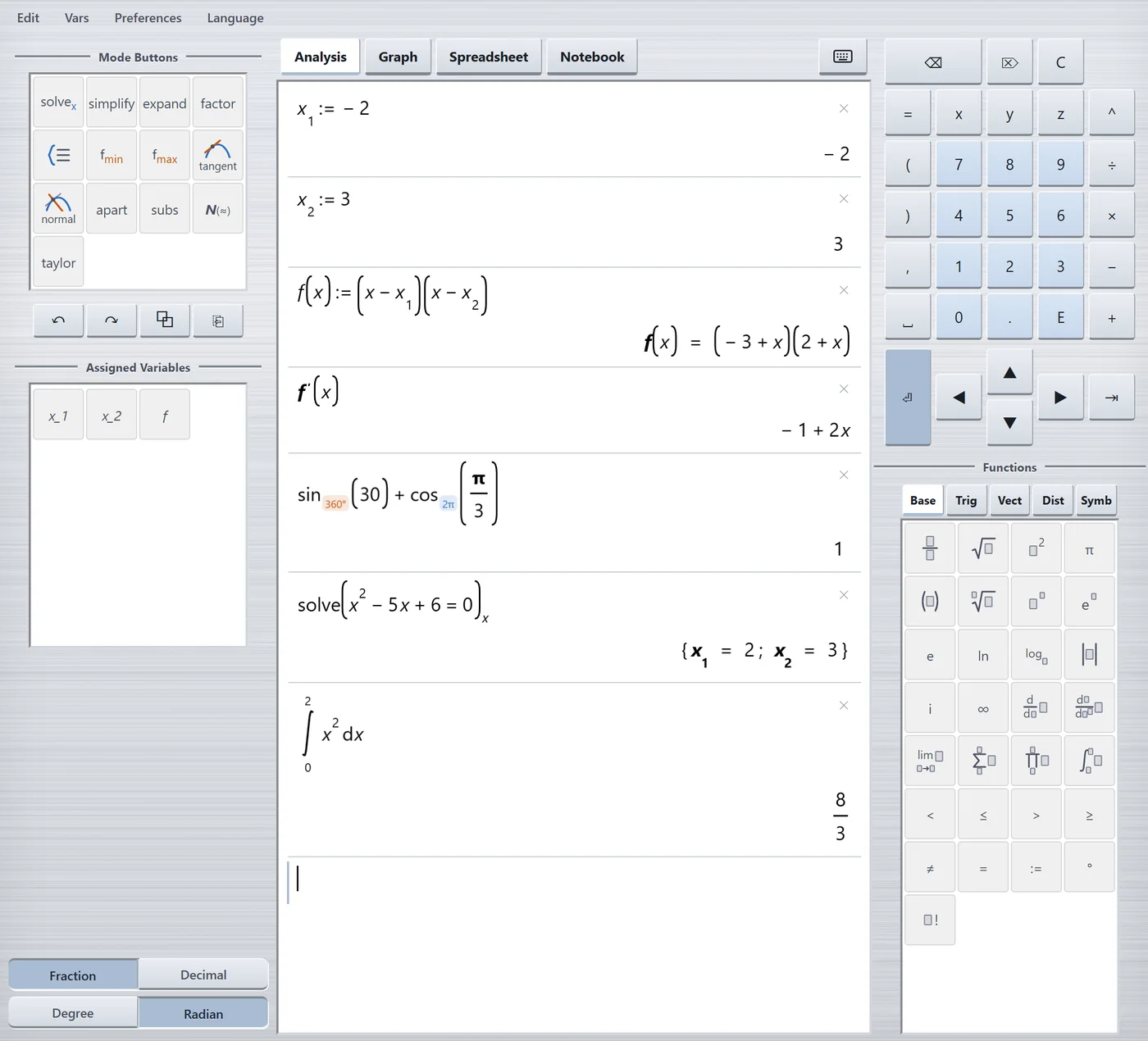
- At the top are the menu bar (Edit, Vars, Preferences, Language) and the four tabs Analysis, Graph, Spreadsheet and Notebook. CASDesk reopens in the mode you left it in.
- On the left are the Mode Buttons. They change with the mode: in Analysis they are commands such as solve or expand, in Graph the analyses such as zeros. Below them are Undo, Redo, Copy and Paste.
- In the middle is where you work.
- On the right are the keypad and the Functions in five tabs: Base, Trig, Vect (vectors and matrices), Dist (distributions) and Symb (Latin and Greek letters).
- Bottom left are two switches: Fraction | Decimal sets whether results are exact or decimal. Degree | Radian sets what new trigonometric functions start as (see Analysis).
In a narrow window, for example on an iPad in portrait, everything moves to the right-hand side. Mode buttons, functions and variables are then stacked; switch between them with the arrows ‹ › or by swiping.
Entering formulas
You can type on the device's keyboard or use the keys on screen. Formulas appear the way they are written: with fraction bars, exponents and root signs.
| What | Keyboard | On screen |
|---|---|---|
| Fraction | / | Fraction key on the Base tab |
| Power | ^ | ^ or the power key |
| Subscript, e.g. x1 | _ | xi on the Symb tab |
| Prime, e.g. f′ | ' | f′ on the Symb tab |
| Assignment | : then = | := on the Base tab |
| Next field, e.g. from numerator to denominator | Tab | ⇥ |
| Calculate | Enter | ⏎ |
Write decimals with a point: 2.5. In CASDesk the comma separates the entries in a bracket, for example in subs(x², x, 3).
Pressing Backspace next to a fraction or root first selects it; the second press deletes it, so nothing is lost by accident.
The on-screen keyboard
The keyboard icon to the right of the tabs opens a full keyboard in your country's layout. It has three extra keys for mathematics: Define (:=), Subscript and Prime. On the iPad it replaces the system keyboard.
Saving and backups
CASDesk saves your work by itself on the device, in all four modes. You do not need to do anything.
So that nothing is lost if the device breaks or is replaced, make a backup now and then:
- Open Preferences → Settings… and find the Backup section.
- Tap Save a backup…. This creates a file such as
CASDesk-Sicherung-2026-11-01.casdeskholding the notebook, calculations, graphs, spreadsheet and preferences. - Keep the file somewhere other than the device, for example on a USB stick or in a cloud.
Restore a backup… brings everything back. It replaces everything currently in CASDesk with the backup, so CASDesk asks first and offers to back up the present work.
Important on the iPad: deleting the app deletes the work in it. A backup protects against that.
Preferences
Under Preferences → Settings… you will find, among others:
- Theme: light or dark.
- Font size for formulas and for the interface.
- Accessibility: the Visually impaired mode with high contrast, thick strokes and bold frames.
- Keyboard layout of the on-screen keyboard.
- Right panel: including Force compact mode for small screens.
- Profiles: save a setup under a name and load it again later.
Language
The Language menu offers Deutsch, English, Français, Español, Italiano, Português, Nederlands, Svenska, Suomi, Dansk, Русский, Polski, Čeština and Ελληνικά. German and English are fully checked; the other translations are still being reviewed.