
Analysis
Calculate, transform, solve: line by line, as in the exercise book.
Calculating lines
- Type an expression or an equation into the line.
- Press Enter or ⏎. The result appears right-aligned below the line, and a new line starts underneath.
Lines are calculated from top to bottom, so a line can use everything defined above it.
- Change: tap an earlier line, change it and press Enter again. Until then the old result is shown faded.
- Delete: the ✕ at the top right of a line deletes it. C empties only the current line. Edit → Clear All empties the whole page. Neither can be undone.
- Long calculations: if a calculation takes longer, the line shows Computing … with a Cancel button. After 30 seconds CASDesk stops by itself.
Exact or decimal
With Fraction, CASDesk calculates exactly: with fractions, roots and π. With Decimal, results are decimals. Switching recalculates every line.
To get a single value as a decimal, use the N(≈) key. A second entry sets the number of digits, for example neval(π, 30) for 30 significant digits.
If CASDesk can only find a solution numerically, it says so, for example (numerically, range ±1000).
The mode buttons
Each button puts a template where the cursor is. Nothing is calculated until Enter. If you select part of the line first (a double-click selects the whole line), the selection goes into the template. You can also just type the names, such as solve(.
| Button | What it does |
|---|---|
| solvex | Solves an equation or inequality for x. The variable is shown small below and can be changed. |
| System of equations | Solves a system of equations. Pressing it again while the cursor is inside the system adds a row. |
| simplify, expand, factor | Simplify, expand, factorise. |
| fmin, fmax | Minimum or maximum of a function, optionally on an interval [a, b]. The ends are included. |
| tangent, normal | Tangent or normal to f at a. |
| apart | Partial fraction decomposition. |
| subs | Substitutes a value: subs(expression, variable, value). |
| N(≈) | Numerical value, see above. |
| taylor | Taylor polynomial: taylor(expression, variable, point, degree). |
Variables and functions
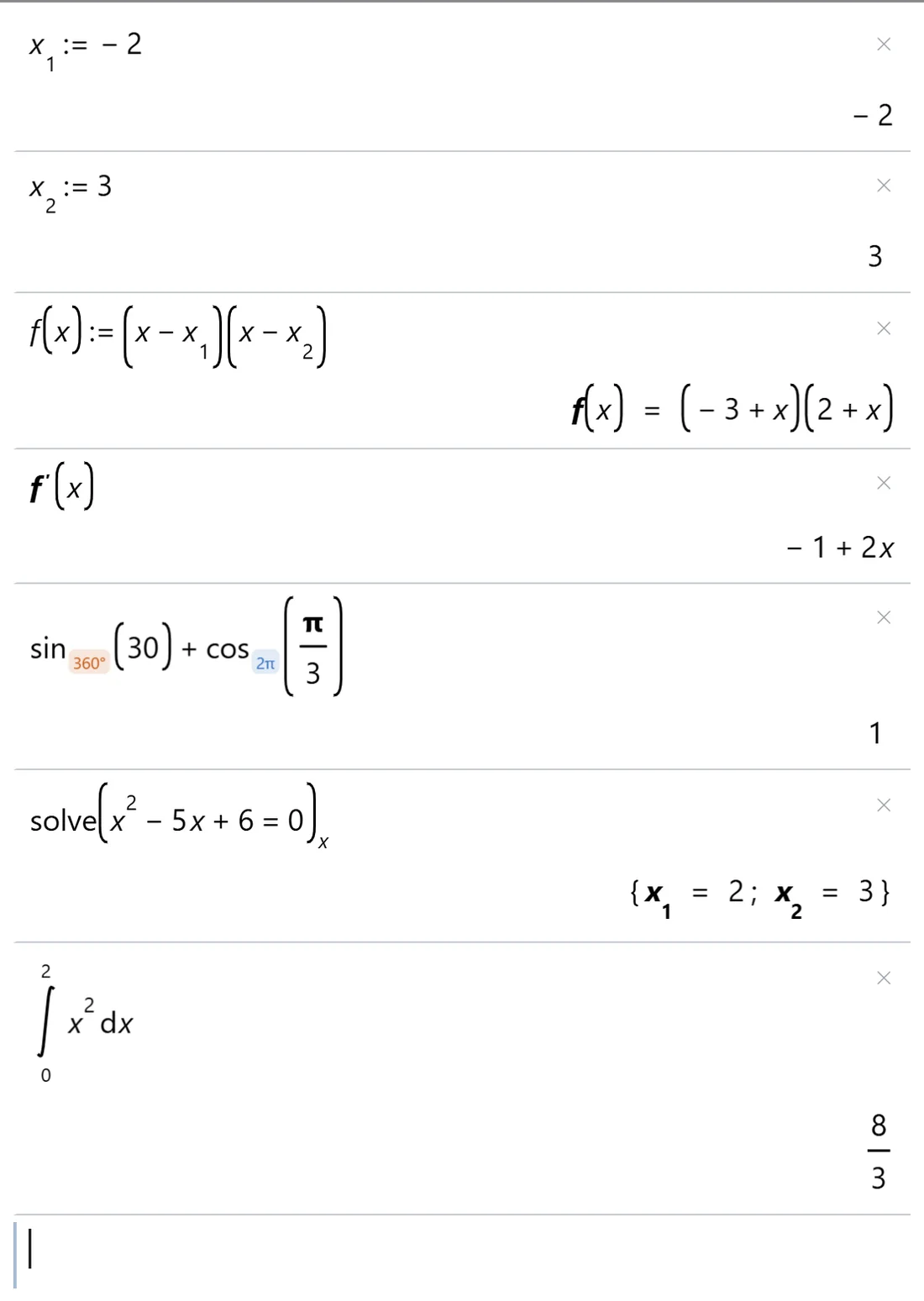
- Assign with :=:
a := 5. A variable name is one letter, optionally with a subscript, such as x1 or s0. - Functions are defined the same way:
f(x) := x² − 4. Then you can use f(3), f′(x) or f″(x); CASDesk forms the derivatives by itself. - Assigned variables: as soon as there are variables, they appear on the left as buttons. A tap puts the name at the cursor; hovering with the mouse shows the value.
- The Vars menu has Manage Variables… (see all variables and delete them one by one) and Constants… (physical constants); Clear All Variables is in the Edit menu.
Trigonometric functions: 2π or 360°
Every trigonometric function, that is sin, cos and tan and their inverses, carries a small tag: 2π for radians or 360° for degrees. Every calculation shows how it is meant, even with both in one line.
- Switching: tap the tag. On a keyboard, press ° with the cursor on the function name. An existing result is recalculated at once.
- The Degree | Radian switch only sets what new trigonometric functions start as. It does not change those already written.
- Differentiating and integrating work only in radians. CASDesk tells you if a function is still set to 360°.
- Type sin²(x) as
sin^2(x). It means the same as sin(x)².sin^-1becomes the inverse function arcsin.
Vectors and matrices
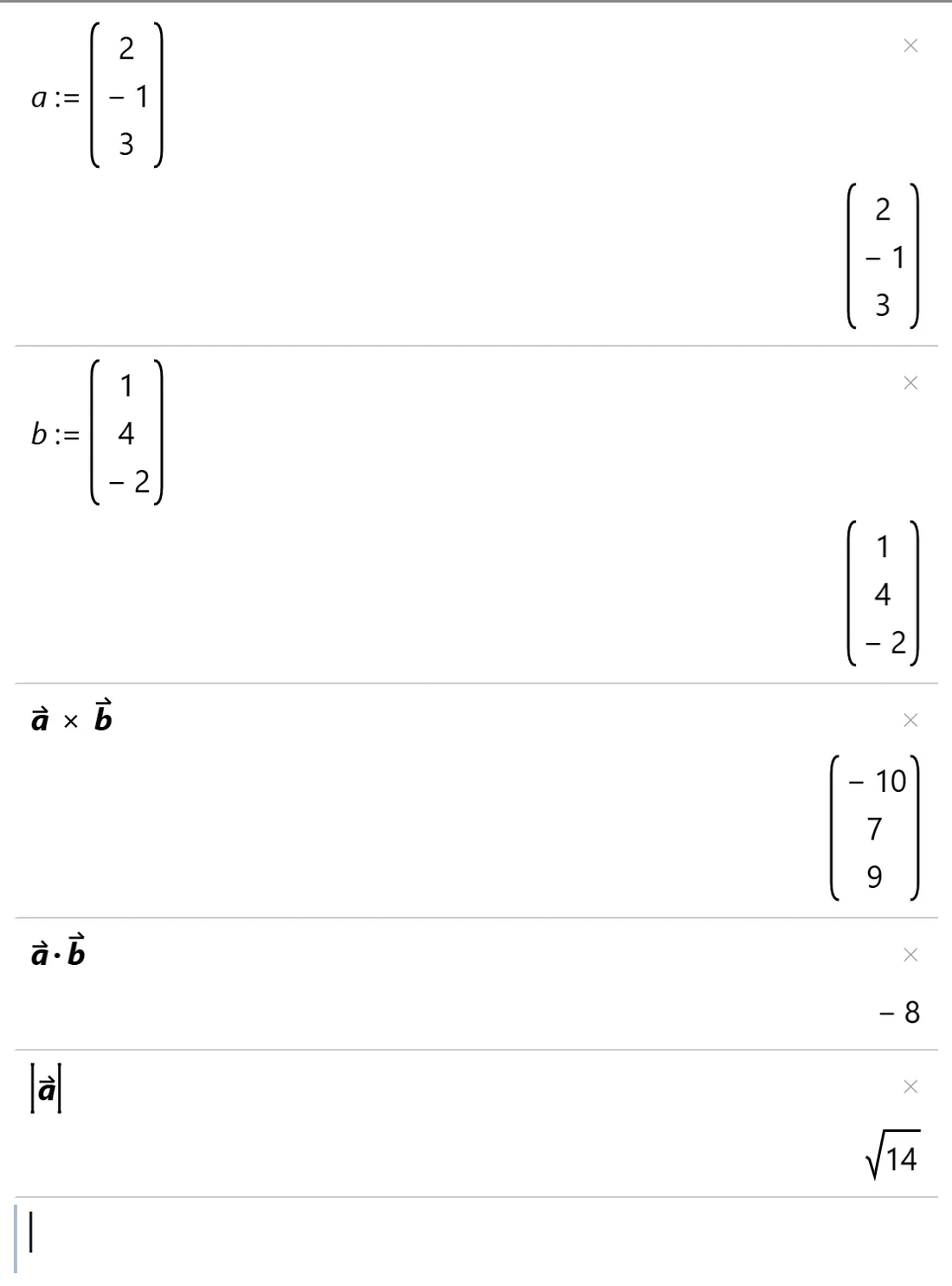
The Vect tab has row vector, column vector and matrix. With the cursor inside a vector, pressing again adds a row or column.
Assign a vector to a letter: a :=, then the Column vector key and the entries. CASDesk then recognises a as a vector and adds the arrow by itself. There are keys for:
- cross product a × b, dot product a · b, magnitude |a| and the angle between two vectors,
- transpose, inverse, det, rref (row echelon form), rank, trace, eigenvalues and eigenvectors,
- row and column operations step by step: rowSwap, rowMult, rowAdd and the same for columns.
Distributions
The Dist tab holds the probability distributions, grouped as discrete (binomial, Poisson, geometric and hypergeometric), continuous (normal, t, chi-squared and F) and inverse. Each key inserts the function with labelled fields, for example binomialPDf(k, n, p) or normCDf(a, b, μ, σ).
Pasting from Word and copying
- A formula from Word can be pasted with Ctrl+V; CASDesk translates it into its own notation.
- Edit → Copy puts a formula on the clipboard so that Word and LibreOffice paste it as a formula. Copy as plain text gives text.